
The miniML GUI#
miniML can be run in a graphical user interface (GUI). The GUI provides a user-friendly interface for loading data, applying filters, and analyzing recordings.
Installation#
To use the graphical user interface of miniML, install miniML with the GUI option. This can be done by running (navigate to the miniML folder first):
pip install ".[gui]"
or from PyPI:
pip install miniml-detect[gui]
Starting the GUI#
The GUI can be started from terminal or command prompt. Activate the virtual environment (if applicable) and run:
miniml-gui
Alternatively, run the miniML_gui.py file in the miniML/miniml folder.
Getting started#
The GUI includes a toolbar with icons for various tasks, plot windows, and an event table.
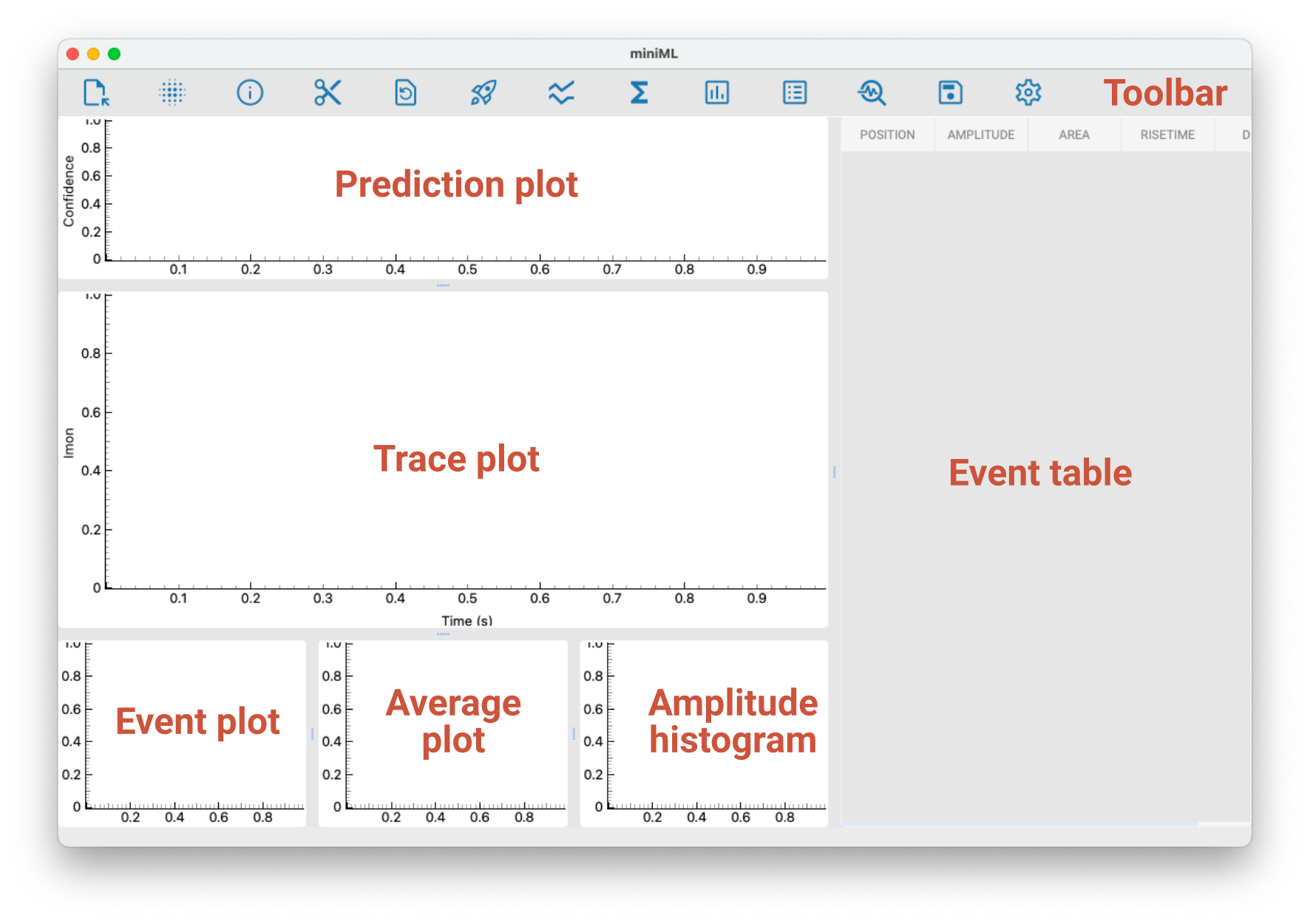
To start analysing a recording, click on the open icon in the status bar or open the file menu and select “Open”. This will open a file dialog where you can select the data file to load. The GUI supports loading HEKA .dat files, Axon .abf files, and HDF .h5 files.